« March 2007 | Main | May 2007 »

April 24, 2007

Multi Tagging Songs

I've been following discussions on quite a few music and tech blogs about adding additional tags to the id3's of your music so that you're not stuck with one genre of music for specific songs in your library. Currently there is only one option for the genre of a song. So, it's either Pop, or Rock or Electronic etc, etc. For example, you can't tag something Rock and Accoustic and Vocals. People mentioned making genre specific playlists or tricking iTunes into adding additional tags by using the comments section in the information area of the id3. They all work if you want to spend the time going through each of your songs or making a ton of very detailed playlists.

Currently there is only one program that allows you to MULTI-TAG your songs, and that's Bossa. With Bossa you can add as many tags as you want to a song, album or artist. The best thing is that Bossa will find tags online that other users are using for that song/artist/album and all you have to do is click on it and you've added it to your library as well. You can also make your own tags by simply typing it in.

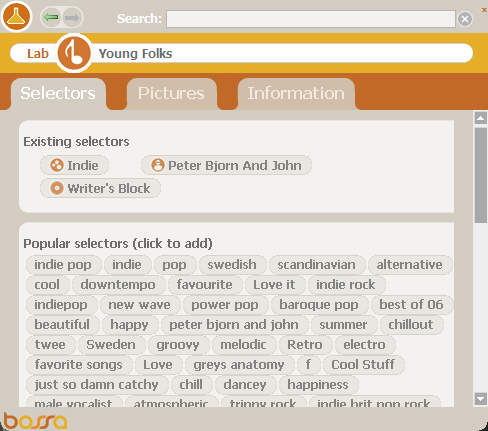
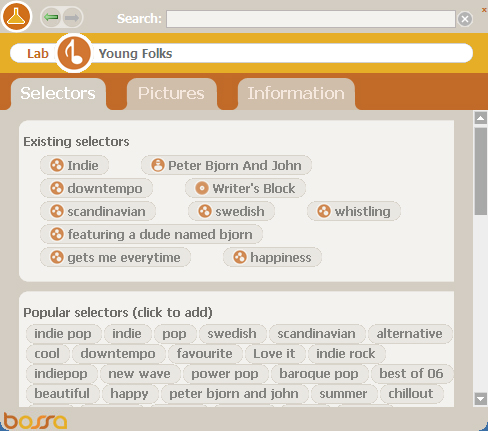
The following image is a good example of multi-tagging a song in Bossa. I'm playing the Petter, Bjorn and John song "Young Folks" and I currently only have it tagged as "Indie". By going into the Bossa lab you can see all the other tags that are found online.
Selectors-1.jpg

In the following image you can see all the tags that I've added to "Young Folks". By adding all these additional Tags or "Genres" I can make very refined or specific playlists and have "Young Folks" pulled into it. Before I added all the additional tags, "Young Folks" would only play if I ask for songs with the tag "Indie". Now it will also play when I list Swedish or whistling or downtempo or Scandinavian or any combination of these.
Selectors-2.jpg

A song has a different sound or meaning for everyone, so placing it in one category is impossible. Bossa allows you to make the song your own and describe it exactly the way you want to.
April 17, 2007

Visually see the difference between WAV, MP3 and AAC

There’s been a lot of hype lately about Apple’s decision to start offering music in its iTunes store as non protected higher bit rate AAC files starting in May. I argued in my personal blog that as long as Apple keeps selling songs in AAC compressed format, it basically remains a protected song since you can’t do much with AAC except put the songs on your iPod and a few other players.

Audiophiles have complained forever about the loss of sound quality because of the compression and I’m not going to argue that. People complained about the warmth of a song on a vinyl record being lost when the cd came out, but going from cd to mp3 was a much bigger loss. Luckily bandwidth has improved so much in the last couple of years that downloading and using any music in less than 192Kbps is a complete waste of time. If more music was available in 320 Kbps we would have music that is audibly almost as good as the original wav file from a store bought cd.

There is an audible difference between an AAC, MP3 and Wav file. Try it at home with a song that you have from the original store bought cd, then make a MP3 version of the song and after that download the same song in AAC format from the iTunes store. You’ll hear a clear difference.

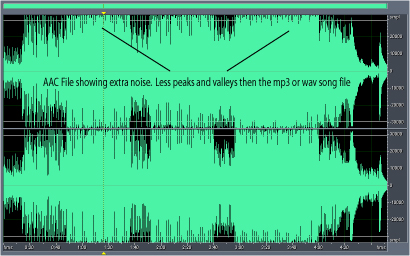
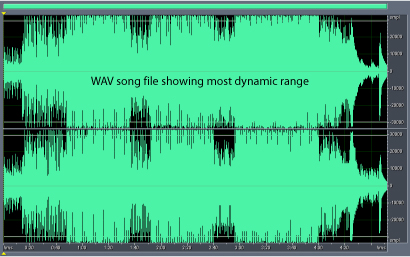
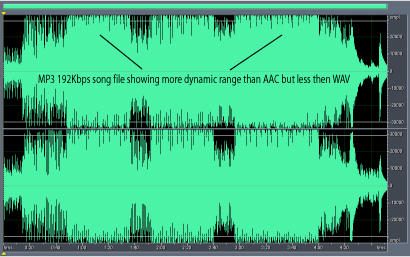
I imported the “Nickodemus” song “Cleopatra In New York - Karuan Remix” into Adobe Audition and you can visually see the difference in quality.

The visuals are fairly small but if you saw them on a regular 19" monitor you can see a major difference. Try it yourself with Audition.


wav.jpg

192mp3.jpg

aac.jpg

April 16, 2007

Wax Poetic 'Brasil'

wax poetic brasil.jpg

Wax Poetic’s Brasil is the final installment of a three-part series of records from the Nublu founder and bandleader Ilhan Ersahin’s Wax Poetic project. Where Wax Poetic’s first major release saw Ersahin collaborating with Norah Jones, N’dea Davenport and Saul Williams, Wax Poetic’s Brasil brings Ilhan in body and spirit to South America. On the album he collaborates with Bebel Gilberto, Sabina Sciubba of Brazilian Girls, Otto, Karina Zeviani, Mamelo Soundsystem and Forro in the Dark, making a work not only highlighting the talent within the country’s borders but also reflecting its vibrancy and grace.

April 05, 2007

iTunes default settings are wrong

Almost daily I end up helping people with an iTunes issue they're having. Whether it's converting AAC files so that they can be played on non Apple MP3 players, or just importing songs from different folders into iTunes, people seem to need help getting around the iTunes interface. One of the most common problems I encounter is that people download iTunes and immediately start importing their music from cd's or older music folders into iTunes.

Now here's the catch.....iTunes has a default setting that imports all music at 128Kbps AAC. Can you imagine how surprised you'll be after you've spent the time to import all your cd's to your computer to find out that you're stuck with all your music files in AAC format and at 128Kbps? iTunes should ask you what default settings you would like to use when you download the program but it doesn't and that's a huge mistake on Apple's part. This is another reason that the anti-trust people are all over them in Europe. They do give you a choice, but you have to figure it out for yourself.

So here's a quick and simple run-through on what you should do with your iTunes settings before you import any music into your itunes folder:

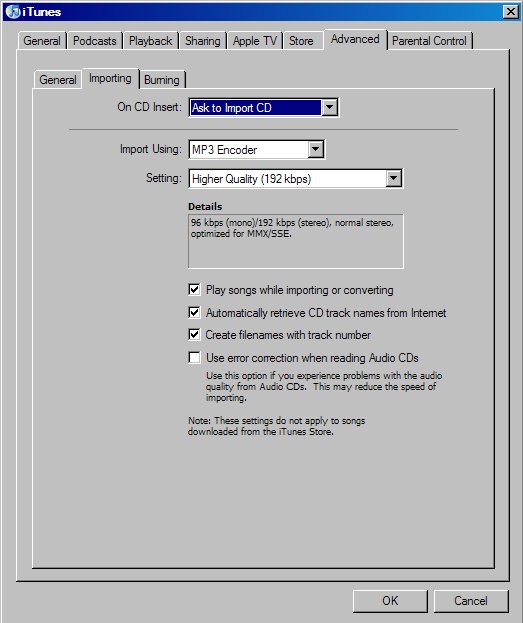
1. Open iTunes and click on Edit - Preferences - Advanced - Importing.
2. Change Import Using to MP3 Encoder
3. Change Setting to at least 192Kbps. 320Kbps is near CD quality. If you have a large hard drive and you're importing a lot of music from your existing cd collection you should set it as high as possible.

This is what your settings should look like:

importing.jpg

Some basic settings to make your organizing and finding your music simple and easy

iTunes has some simple settings that aren't automatically set to default, which I find amazing. When you first start iTunes it will find music all over your computer. Whether it's on your internal hard drive, your external hard drive or a flash card, it will throw all your music into the iTunes library. The problem is that when you play your music it also needs to retrieve the music from those exact folders. So if you unplug your external hard drive or you take your flash card out of your computer, imagine your surprise that iTunes can't find your music!

One of the coolest features of Itunes is that you can have it organize all your songs in album and song folders and name the songs based on disc number, track number and song title. So now you can have all your music in one folder on your computer. Granted, you'll need a big hard drive if you have a lot of music on your computer, but everything's in one place and super easy to find.

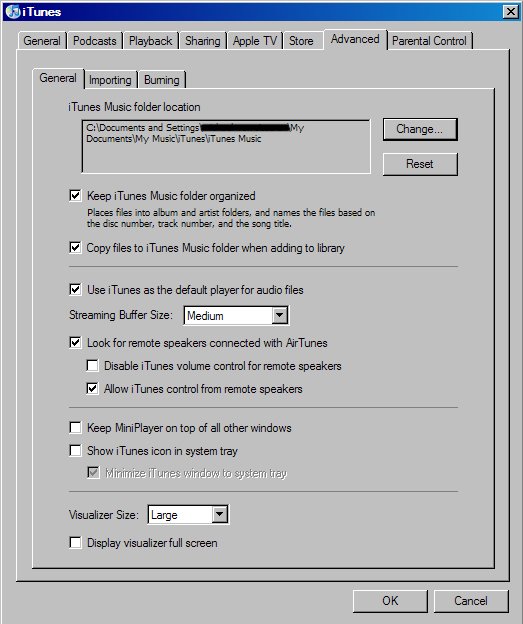
This is what you need to do to set iTunes to organize your music on your computer:

1. Open iTunes and click on Edit - Preferences - Advanced - General.
2. Click on the tab that says "Keep iTunes music folder organized"
3. Click on the tab that says "Copy songs to iTunes music folder when adding to library"

general.jpg